For centuries, humans have longed to communicate effortlessly across different languages. In virtual collaboration, reading translated captions was a massive milestone—especially during remote work shifts—but staring at text captions often forces you to look away from the speaker, losing personal connection, eye contact, and natural flow.
With the launch of Gemini 3.5 Live Translate in Google Meet, virtual communication takes a giant leap forward. Instead of relying solely on reading text on a screen, Google Meet can now synthesize translated spoken voice near real-time, matching the speaker’s emotional tone and cadence. Whether you are facilitating international sales calls, coordinating cross-border team projects, or running global community streams, you can now speak in your native language while participants hear you translated into theirs.
Here is your practical, hands-on deployment guide—crafted in our signature OnEBoard style—covering smart licensing optimizations, in-meeting setup steps, security facts, and Google Workspace admin controls.
1. Quick Tip #1: The Single-License Optimization Strategy
When new enterprise AI capabilities launch, IT directors and business owners often worry about massive software bills. If you operate a 10-person company or manage a global department, do you need to purchase 10 premium AI licenses for everyone to communicate internationally?
The answer is no. Google Meet uses host-based entitlement inheritance for speech translation:
- Host-Driven Access: As long as the meeting host (the organizer who schedules the call) holds an eligible Google Workspace or Google AI license, all meeting participants automatically inherit speech translation capabilities.
- External Guests Included: This entitlement extends seamlessly to external clients, contractors, cross-company partners, and unauthenticated guests joining the session.
- 1:1 Call Activation: For direct one-on-one calls, speech translation activates for both participants as long as at least one person holds an active entitlement.
Smart Admin Takeaway: You do not need to overspend on domain-wide upgrades. Optimize your software budget by licensing key individuals who facilitate cross-border communication—such as international sales representatives, executive facilitators, or project leads. A single host license empowers every guest in their meetings to converse in their chosen language.
2. Quick Tip #2: Managing Session Runtimes (90 Minutes vs. 8 Hours)
Before hosting long-form global events, it is essential to understand the session duration limits tied to your Google Workspace tier. Base workspace plans carry a session runtime cap that automatically turns off speech translation mid-meeting if exceeded.
The matrix below maps base Workspace SKUs and Google AI add-on plans to their corresponding eligibility and session duration caps:
| Subscription Tier / SKU Category | Eligible Base & Add-On Products | Maximum Translation Session Cap |
| Google Workspace Base Tiers | Business Standard, Business Plus, Enterprise Standard, Enterprise Plus, Frontline Plus | 90 Minutes per meeting |
| Base AI Add-Ons & Consumer | Google AI Pro, AI Pro for Education | 90 Minutes per meeting |
| Expanded Enterprise AI Add-Ons | AI Expanded Access, AI Ultra Access | 8 Hours per meeting |
| Premium Consumer AI Plans | Google AI Ultra | 8 Hours per meeting |
If your organization relies exclusively on standard base plans, speech translation will automatically deactivate after 90 minutes. For quick team standups or short client check-ins, 90 minutes is plenty. However, for extended global town halls, technical workshops, or executive board meetings, reaching this threshold causes operational disruption.
To prevent meeting interruptions, audit your organizational meeting hosts and upgrade facilitators of long-form events to AI Expanded Access, AI Ultra Access, or Google AI Ultra. This extends your continuous translation window from 90 minutes to 8 hours.
3. Quick Tip #3: Step-by-Step Setup & Avoiding Common Configuration Traps
Google Meet speech translation decentralizes meeting controls, placing configuration directly into the hands of each participant. The feature is OFF by default when joining a meeting, so each attendee initiates translation independently.
Step-by-Step User Configuration
- Locate the Translation Control: Click the Translate Speech icon located on the meeting toolbar (or in the upper right control panel on desktop browsers).
- Set Your Spoken Language: Select the language you will be speaking (e.g., English).
- Set Your Listening Language: Select the target language you wish to hear (e.g., Italian).
- Grant Voice Translation Consent: Click Translate my voice (or approve Allow Translation on your video tile badge) to enable outgoing voice synthesis.
The operational architecture processes incoming spoken speech through automatic detection and personalized voice synthesis:
[ Incoming Spoken Audio ]
       │
       ▼
[ Automatic Language Detection ] ──► (Identifies spoken language in near real-time)
       │
       ▼
[ Personal Bypass Filter ] ───────► (Passes through raw audio for languages marked "understood")
       │
       ▼
[ Gemini 3.5 Speech Synthesis ] ──► (Renders translated voice matching speaker's tone)
       │
       ├─► [ Synchronized Captions ] ─► (Displays real-time translated text captions)
       │
       └─► [ Participant Prompt ] ───► (Notifies other attendees to turn on translation)
⚠️ The Misconfiguration Trap to Avoid
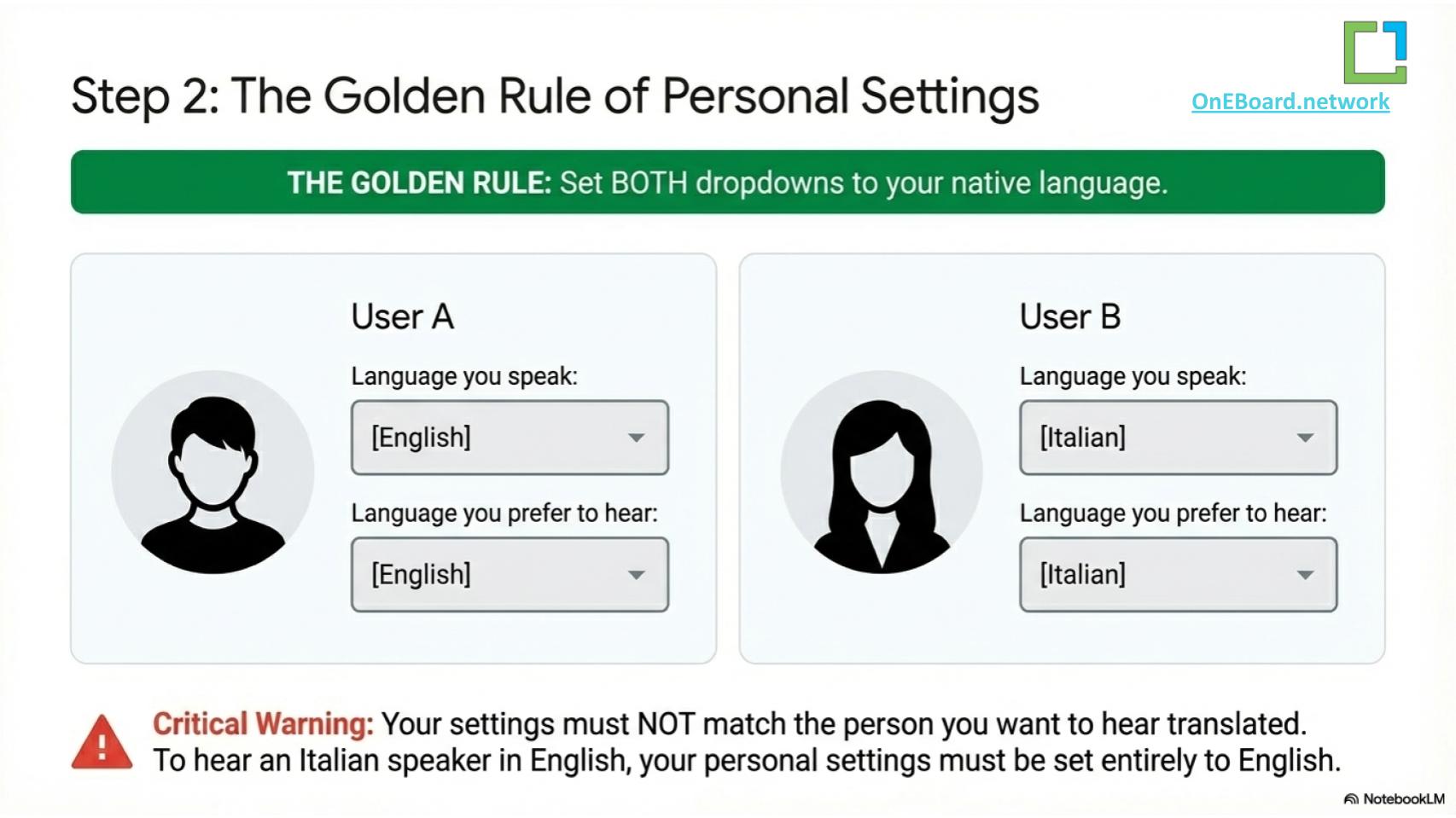
During live testing, users often fall into a common setup trap: setting their preferred listening language back to “Original Speech”.
If you set your listening language to Original Speech, Google Meet interprets this as an instruction to bypass translation entirely and turns off the speech translation pipeline. To hear other participants translated, your listening selection must reflect the language you want to hear (e.g., hearing an Italian speaker translated into English), while the other participant configures their panel to hear English translated into Italian.
Smart In-Meeting Features
- 63 Supported Language Pairs: The Gemini 3.5 engine supports dynamic multi-directional translation across 63 languages—including Spanish, French, German, Italian, Portuguese, Japanese, Korean, Chinese, and Bulgarian.
- Personal Language Bypasses: If you are bilingual, you can add secondary languages to your personal bypass list. When Google Meet detects those languages, it passes through the natural raw audio without synthesizing translation.
- Synchronized Captions: For noisy environments or enhanced comprehension, automatically translated text captions stream in sync with the synthetic voice audio.
- Pause Outgoing Audio: Select Don’t translate me at any time to continue receiving translated audio while suppressing outgoing voice processing.
4. Security, Privacy & Physical Hardware Boundaries
Enterprise compliance officers and privacy leads frequently raise questions regarding voice data handling and physical room setups. Here is what you need to know.
Strict Data Privacy & Zero Retention
- Transient Voice Processing: Audio streams processed during live translation are strictly transient.
- Zero Storage: No voice audio is stored, saved, or logged on Google infrastructure.
- No AI Model Training: Enterprise voice profiles and meeting conversations are explicitly excluded from AI model training datasets.
Hybrid Conference Rooms & Google Meet Hardware
When integrating speech translation into physical conference rooms equipped with Google Meet Hardware kits, directional audio boundaries apply:
- Inbound Remote Audio (Supported): In-room participants using conference room hardware will hear translated voice audio coming from remote participants joining outside the room.
- Outbound Room Audio (Un-translated): Speech spoken inside the physical conference room through hardware microphone arrays is not translated for external remote attendees. Remote participants receive the natural, un-translated room audio.
Technical Boundary Exclusions
Speech translation is automatically suppressed or unavailable under the following technical conditions:
- Meeting Recordings & Live Streams: Translation cannot be captured within recorded video files or live stream broadcasts.
- Client-Side Encrypted (CSE) Meetings: Encrypted sessions cannot process live voice synthesis.
- PSTN Telephone Dial-In: Participants dialing in via traditional telephone lines or third-party SIP/H.323 bridges cannot send or receive translated speech.
- Adaptive Audio & Under-18 Accounts: Environments utilizing Adaptive Audio algorithms or user accounts identified as under 18 years of age are restricted from feature access.
5. Google Workspace Admin Console Setup & Deployment Timeline
Administrative controls are managed centrally within the Google Workspace Admin Console. The default configuration simplifies rollout while allowing targeted policy control.
Admin Console Navigation Path
To manage speech translation policies, navigate to: Apps > Google Workspace > Google Meet > Gemini settings
[ Google Admin Console ]
          │
          ▼
       [ Apps ]
          │
          ▼
[ Google Workspace ]
          │
          ▼
   [ Google Meet ]
          │
          ▼
[ Gemini settings ] ──► [ Speech Translation Policy ]
Default Governance & OU Controls
- ON by Default: For all eligible Google Workspace SKUs, the administrative speech translation setting is ON by default whenever the parent Gemini for Meet policy is active. No manual intervention is needed for domain-wide availability.
- Organizational Unit (OU) Overrides: Admins can disable feature access for specific business units (such as regulatory or legal OUs) while keeping it active for sales, support, or international operations.
- Group-Based Governance: Custom Group policy rules allow admins to enable speech translation for pilot testing cohorts before launching domain-wide.
Rollout Schedule & Release Tracks
- Rapid Release Domains: Feature rollout begins October 22, 2026 (1 to 3 days for full domain visibility).
- Scheduled Release Domains: Gradual rollout begins November 2, 2026 (up to 15 days for full domain visibility).
- Helpdesk Note: Brief your internal helpdesk teams not to file bug tickets regarding minor caption sync variances during the initial 15-day propagation window. Ensure mobile users on iOS and Android update their Google Meet apps to the latest client build.
6. Operational Best Practices for Global Teams
To ensure effortless cross-cultural collaboration, encourage your team to adopt these simple meeting habits:
- Watch the Tile Badge: Wait for the translation badge on a speaker’s video tile to clear before speaking to prevent overlapping voice synthesis.
- Speak Clearly at a Steady Pace: Give the Gemini 3.5 engine a couple of seconds to buffer full sentence context before voice synthesis renders.
- Use Multi-Modal Redundancy: Turn on synchronized captions alongside voice translation for precise technical data, acronyms, or complex numbers.
- Leverage In-Meeting Feedback: Click the Speech Translation badge in the upper corner of the call window to submit immediate thumbs-up or thumbs-down ratings to help admins monitor real-world quality.
What to Explore Next on OnEBoard
We have made recap presentation slides and administrative cheat sheets available for download. Subscribe to our newsletter to receive our free resource PDFs, technical recap guides, and video walkthroughs!
Related tutorials:
How to turn Off/On Continuous Chat in Google Meet Meetings , Languages Spoken in the Meeting: Notes with Gemini